

Image to Text Converter
How to extract text from image
Upload the photo, screenshot, or JPG containing the words you want to capture.
Let our text extractor scan the image and convert its content into editable text.
Review the extracted wording, then copy it or download the text file yourself.
Why choose image to text AI
What our picture to text tool does
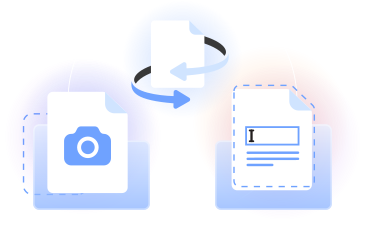
PDFLeader’s picture to text converter uses online OCR to extract text from an image and turn pictures to text you can edit, copy, and reuse.
Upload a photo or JPG, review the digital text, and download the result. Our image to text conversion tools run in your browser with no installation.
Who uses photo to text tools
Students
Students use a photo to text converter to digitize handwritten notes, textbook passages, and study materials for easier editing.
Office teams
Office teams turn images to text when moving printed notices, receipts, screenshots, and scanned records into editable documents.

Researchers
Researchers convert images to text online to capture quotations, labels, and archival material without manually typing every word.
Content creators
Content creators use an image to text generator to capture captions, quotes, and draft copy from visual references.

Multilingual readers
Multilingual readers use an image to text translator to recognize visible wording and prepare it for translation across 80+ languages.
Students
Students use a photo to text converter to digitize handwritten notes, textbook passages, and study materials for easier editing.
Choose the best tool for your business needs
FAQ

How can I convert an image to text?
Upload your photo, screenshot, or scan to our image to text converter. The tool uses OCR to identify the visible wording and produce editable text. Review the result, make any needed corrections, and then copy the text or download the output yourself.
How can I extract handwritten text from an image?
Upload a clear photo or scan of the handwritten material. Our online image to text tool analyzes the writing and extracts the text as editable digital content. Clear lettering, even lighting, and a straight image can help OCR recognize the words more accurately.
Which image to text converter is best?
The best choice should fit your document, language, and editing needs. PDFLeader runs in your browser, uses OCR to recognize printed and handwritten content, and lets you review the extracted wording before you copy it or choose to download the result.
Can I extract text from an image on an iPhone?
Yes. Open PDFLeader in a browser on your iPhone, select the image containing the wording, and run the text extraction. Once the image text extractor finishes, review the editable text and copy it or start the download when you are ready.
What is the best image to text converter?
A useful converter should recognize your source clearly, support the language you need, and make the result easy to review. Our JPG to text converter works in the browser and turns visible wording into editable content that you can copy or download yourself.
How do I copy text from a picture?
To convert pictures to text, upload it to our picture to text converter and let OCR scan the visible wording. Check the extracted result, select the content you need, and copy it into your notes, document, message, or another application.
How do I convert a screenshot to Word?
Upload the screenshot to our image to text online tool and run the text conversion. After OCR extracts the text, review the result and move from image to editable Word content by copying it into Microsoft Word. You can then edit the wording, apply your preferred formatting, and save the Word document.
Does PDFLeader have a refund policy?
Yes. The Refund Policy sets out the cases where a refund applies and how to send a request.
What if I have any issues and need help?
We've got your back 24/7! Just call +1 (844) 548-9416 or email support@pdfleader.com, and we'll sort things out for you.
How do I cancel PDFLeader?
You can cancel your subscription from account settings, or contact the support team and ask them to cancel it. You keep access until the current billing period is over.